MaterialDesignThemes开源地址 https://github.com/MaterialDesignInXAML/MaterialDesignInXamlToolkit
1、在Nuget里面安装MaterialDesignThemes
2、在 App.xaml 中引入 MaterialDesign 主题资源
<Application x:Class="WpfApp1.App"
             xmlns="http://schemas.microsoft.com/winfx/2006/xaml/presentation"
             xmlns:x="http://schemas.microsoft.com/winfx/2006/xaml"
             xmlns:local="clr-namespace:WpfApp1"
             xmlns:materialDesign="http://materialdesigninxaml.net/winfx/xaml/themes"
             StartupUri="MainWindow.xaml">

    <Application.Resources>
        <ResourceDictionary>
            <ResourceDictionary.MergedDictionaries>
                <materialDesign:BundledTheme BaseTheme="Light" PrimaryColor="DeepPurple" SecondaryColor="Lime" />

                <ResourceDictionary Source="pack://application:,,,/MaterialDesignThemes.Wpf;component/Themes/MaterialDesign2.Defaults.xaml" />
            </ResourceDictionary.MergedDictionaries>
        </ResourceDictionary>
    </Application.Resources>

</Application>
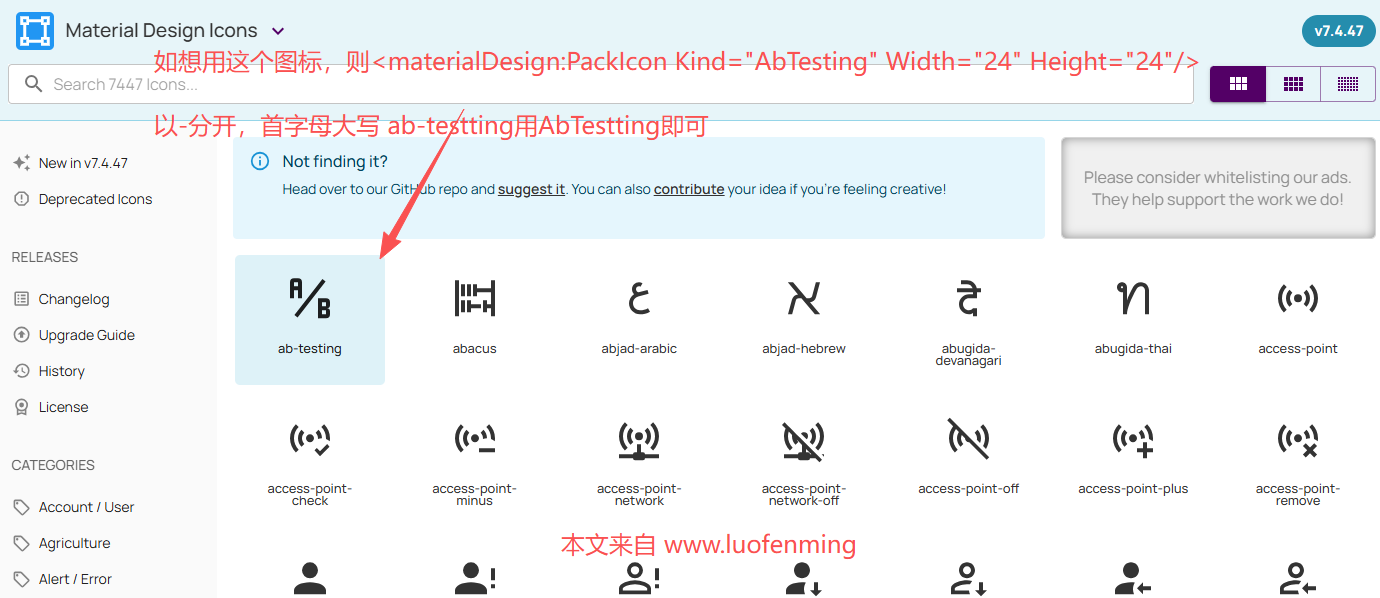
3.MaterialDesignThemesr的图标使用
效果图

核心代码
<Window x:Class="WpfApp1.MainWindow"
        xmlns="http://schemas.microsoft.com/winfx/2006/xaml/presentation"
        xmlns:x="http://schemas.microsoft.com/winfx/2006/xaml"
        xmlns:materialDesign="http://materialdesigninxaml.net/winfx/xaml/themes"
        Title="Button图标使用实例" Height="300" Width="400">
    <Grid>
        <StackPanel HorizontalAlignment="Center" VerticalAlignment="Center" >
            <!--新增按钮:用StackPanel组合图标+文字-->
            <Button Width="120" Height="40" Margin="20"
                    Style="{DynamicResource  MaterialDesignRaisedSecondaryDarkButton}"
            materialDesign:ButtonAssist.CornerRadius="4">
                <Button.Content>
                    <StackPanel Orientation="Horizontal" HorizontalAlignment="Center" >
                        <!--图标-->
                        <materialDesign:PackIcon Kind="Add" Width="24" Height="24"/>
                        <!--文字-->
                        <TextBlock Text="新增" VerticalAlignment="Center"/>
                    </StackPanel>
                </Button.Content>
            </Button>

            <!--设置按钮:用StackPanel组合图标+文字-->
            <Button Width="120" Height="40"
            Style="{DynamicResource MaterialDesignRaisedButton}"
            materialDesign:ButtonAssist.CornerRadius="4">
                <Button.Content>
                    <StackPanel Orientation="Horizontal" HorizontalAlignment="Center">
                        <!--图标(红色)-->
                        <materialDesign:PackIcon Kind="Settings" Width="24" Height="24" Foreground="Red"/>
                        <!--文字-->
                        <TextBlock Text="设置" VerticalAlignment="Center"/>
                    </StackPanel>
                </Button.Content>
            </Button>
        </StackPanel>
    </Grid>
</Window>
图标屏示地址https://pictogrammers.com/library/mdi/
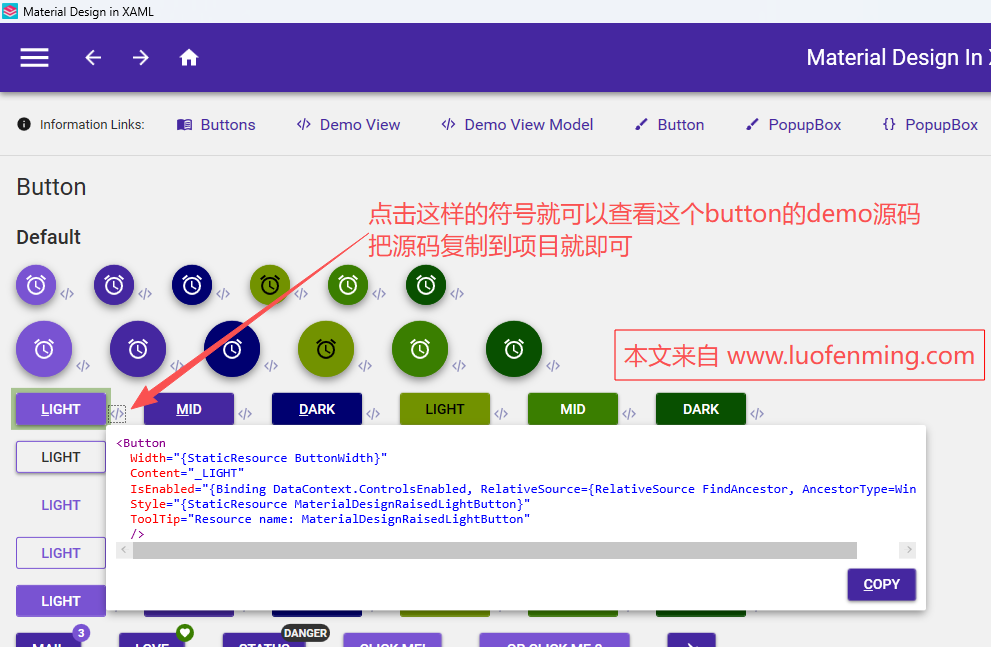
4.MaterialDesignThemesr控件使用。
控件demo下载地址https://github.com/MaterialDesignInXAML/MaterialDesignInXamlToolkit/releases
本文来自 www.luofenming.com